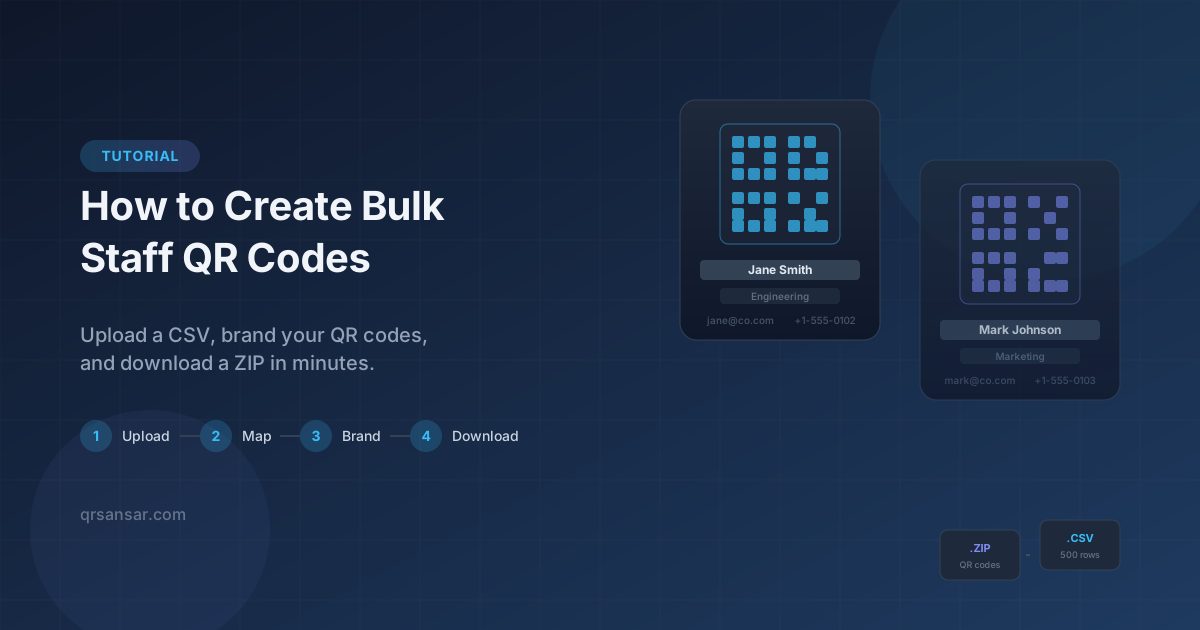
How to Create Bulk Staff QR Codes — A Step-by-Step Tutorial

Generate Branded QR Codes for Your Entire Team in Minutes
Handing out business cards is slow. Typing contact details manually is slower. A vCard QR code solves both — one scan saves a full contact entry with name, phone, email, job title, company, website, and address.
Now imagine doing that for 10, 50, or 500 employees at once. That is exactly what the Bulk Staff QR Code Generator on QRSansar does.
This tutorial walks you through the entire process — from preparing your spreadsheet to downloading a branded ZIP of QR codes — so you can get your team set up in minutes, not hours.
What You Will Need
Before you start, gather these:
- A CSV or Excel file with your staff contact details (names, emails, phones, departments, etc.)
- Your company logo (optional, PNG or JPG) — this gets centered on every QR code
- A QRSansar premium account — the bulk generator is a premium feature
Don''t have a spreadsheet yet? No problem — the tool lets you download a sample CSV template to get started.
Step 1: Prepare Your Staff Spreadsheet
The generator accepts .csv, .xlsx, and .xls files. Your spreadsheet needs a header row in the first row, followed by one row per staff member.
Supported Fields
| Column | What It Maps To | Example |
|---|---|---|
| First Name | Contact first name | Jane |
| Last Name | Contact last name | Smith |
| Full Name | Combined name (use instead of first + last) | Jane Smith |
| Email address | jane.smith@company.com | |
| Phone | Phone number | +1-555-0102 |
| Designation / Job Title | Role or title | Software Engineer |
| Department | Team or division | Engineering |
| Organization | Company name | Acme Corp |
| Website | Company or personal URL | https://acme.com |
| Address | Office or mailing address | 123 Main St, Suite 400 |
Tips for a Clean Spreadsheet
- Use clear column headers — the tool auto-detects common names like "First Name", "Email", "Phone", "Department", "Job Title", and "Website". The closer your headers match, the less manual mapping you need.
- Keep it under 500 rows — the generator handles up to 500 staff records per batch. If you have more, split into multiple files.
- Remove blank rows — empty rows are skipped automatically, but cleaning them up keeps things tidy.
- Use international phone format — include the country code (e.g.,
+1-555-0102or+977-9841000000) for universal compatibility.
Sample CSV
Not sure how to structure your file? Click "Download Sample CSV" on the upload page and you will get a ready-to-fill template:
First Name,Last Name,Email,Phone,Designation,Department,Website,Address
John,Doe,john.doe@company.com,+1-555-0101,Software Engineer,Engineering,https://company.com,"123 Main St, Suite 400"
Jane,Smith,jane.smith@company.com,+1-555-0102,Product Manager,Product,https://company.com,"456 Oak Ave, Floor 2"
Fill it in with your team''s details, save as .csv, and you are ready to upload.
Step 2: Upload Your File
- Go to qrsansar.com/bulk/staff-qr
- Log in with your premium account
- Either drag and drop your file onto the upload area, or click to browse and select it
- The tool parses your file instantly — you will see a confirmation showing the number of staff rows detected
Everything happens in your browser. Your file is never uploaded to any server. The CSV/Excel data stays on your device at all times.
Step 3: Map Your Columns
After upload, the tool shows your column headers and tries to auto-detect what each column represents. You will see a mapping screen like:
[First Name]  →  First Name     (auto-detected)
[Last Name]   →  Last Name      (auto-detected)
[Email]       →  Email          (auto-detected)
[Phone]       →  Phone          (auto-detected)
[Title]       →  Job Title      (auto-detected)
[Dept]        →  Department     (auto-detected)
What to Check
- Verify each mapping — make sure columns are matched to the right vCard fields. The auto-detection is smart but not perfect, especially with unusual header names.
- Skip columns you don''t need — set any irrelevant column to "— Skip —" in the dropdown.
- At least one name field is required — you must map either "First Name" or "Full Name" (or both) before proceeding.
- Preview your data — the mapping step shows a preview table of the first 8 rows so you can verify the data looks correct.
Once your mappings look right, click Next to move to branding.
Step 4: Brand and Customize Your QR Codes
This is where you make the QR codes yours. The branding step has three sections:
Organization Details
- Company/Organization Name — this gets encoded into every vCard''s
ORGfield, so scanning any QR code shows your company name in the saved contact. - Company Website — optional. Adds your URL to every vCard''s
URLfield.
Logo
- Upload your company logo — drag and drop or click to upload. The logo is centered on every QR code.
- When a logo is present, error correction is automatically raised to High (H) to keep codes scannable despite the logo covering part of the pattern.
- Supported formats: PNG, JPG, SVG, or any image your browser can render.
QR Code Style
| Option | Choices | Default |
|---|---|---|
| Size | 256px, 512px, 1024px | 512px |
| Format | PNG, SVG | PNG |
| Dot Color | Any hex color | #1e293b (dark slate) |
| Background | Any hex color | #ffffff (white) |
| Dot Style | Square, Dots, Rounded, Extra Rounded, Classy, Classy Rounded | Rounded |
| Error Correction | L, M, Q, H | M (auto H with logo) |
Pro tip: If you plan to print the QR codes on badges or business cards, choose 1024px for crisp output. For digital use (email signatures, internal directories), 512px is fine.
Step 5: Preview Your QR Codes
Before generating the full batch, the tool shows you a preview of the first 6 QR codes with staff names underneath. This is your chance to:
- Check the design — are the colors right? Does the logo look centered and clear?
- Verify the data — scan one of the previews with your phone to confirm the vCard fields are correct.
- Go back and adjust — hit the back button to change colors, logo, mappings, or even re-upload a corrected file.
If everything looks good, click "Generate All QR Codes". A progress bar shows the generation status as each QR code is created.
Step 6: Download Your ZIP
Once generation is complete, you will see a download screen with:
- A summary — "N staff QR codes ready for download"
- Thumbnail grid — preview of up to 12 QR codes from the batch
- Download ZIP button — one click, one file, all your QR codes
How Files Are Named
Each QR code is named using the pattern:
firstname-lastname-department.png
For example:
jane-smith-engineering.pngjohn-doe-marketing.pngsara-chen-design.png
If two staff members share the same name and department, a numeric suffix is added (jane-smith-engineering-1.png).
The ZIP file itself is named after your organization: acme-corp-staff-qr-codes.zip.
What Happens When Someone Scans a Staff QR Code?
When a colleague, client, or conference attendee scans one of these QR codes, their phone:
- Recognizes the vCard data instantly
- Shows an "Add Contact" prompt with all fields pre-filled — name, phone, email, job title, company, website, and address
- Saves the full contact with one tap
No app download required. No URL to visit. It works with the built-in camera app on both iPhone and Android.
Real-World Use Cases
Employee ID Badges
Print each staff member''s QR code on the back of their ID badge. Visitors scan to save contact info instead of swapping business cards.
Conference and Trade Shows
Print QR codes on lanyards or table cards. Attendees scan and save your team''s details without fumbling with paper cards.
Email Signatures
Drop each person''s QR code into their email signature. Recipients scan instead of manually copying contact details.
Internal Staff Directory
Display QR codes alongside names in your intranet or office directory wall. New hires can scan to add the entire team in minutes.
Onboarding Kits
Include a sheet of department QR codes in new-hire welcome packets. One scan per colleague to build their contact list.
Frequently Asked Questions
Is our staff data stored on your servers?
No. Everything runs in your browser. Your CSV/Excel data, staff details, and generated QR codes never leave your device. Nothing is uploaded or logged.
What file formats are supported?
CSV (.csv), Excel (.xlsx), and legacy Excel (.xls). The tool auto-detects your column headers and maps them to vCard fields.
How many QR codes can I generate at once?
Up to 500 staff QR codes per batch. If you have more than 500 employees, split your spreadsheet and run multiple batches.
Can I add our company logo?
Yes. Upload any image (PNG, JPG, SVG) and it will be centered on every QR code. Error correction is automatically set to High so codes remain scannable.
What QR code format should I choose — PNG or SVG?
- PNG — best for digital use (email, Slack, intranet) and printing at a fixed size.
- SVG — best for print materials where you need to scale without losing quality (posters, banners, large badges).
Do the QR codes expire?
No. These are static vCard QR codes. The contact data is embedded directly in the QR pattern. They work forever, with no server dependency and no expiry date.
What vCard version is used?
vCard 3.0 — the most widely supported version across all major phone operating systems and contact apps.
Quick Recap
| Step | What You Do | Time |
|---|---|---|
| 1 | Prepare a CSV/Excel file with staff details | 5 min |
| 2 | Upload the file at /bulk/staff-qr | 10 sec |
| 3 | Verify auto-detected column mappings | 30 sec |
| 4 | Add your logo, pick colors and dot style | 1 min |
| 5 | Preview and generate all QR codes | 30 sec |
| 6 | Download the ZIP | 1 click |
Total time: under 10 minutes for up to 500 branded staff QR codes.
Ready to Get Started?
Your team''s contact sharing is about to get a serious upgrade.
Create your bulk staff QR codes now →
Need individual QR codes instead? Use the free vCard QR Code Generator — no account required.